

Information
Information items are short messages and updates – from agents in the chat, from automations, or from colleagues. They are collected centrally in the “Information” area and keep everyone up to date on everything new.
What Is Information Suited For?
- Receiving results from agents, e.g. the summary of a research task from the chat
- Distributing important updates in the company, e.g. new policies or dates
- Receiving regular reports from automations, e.g. when an agent finds something unusual in a run
- Asking a follow-up question in the chat directly from an information item
The Information Overview
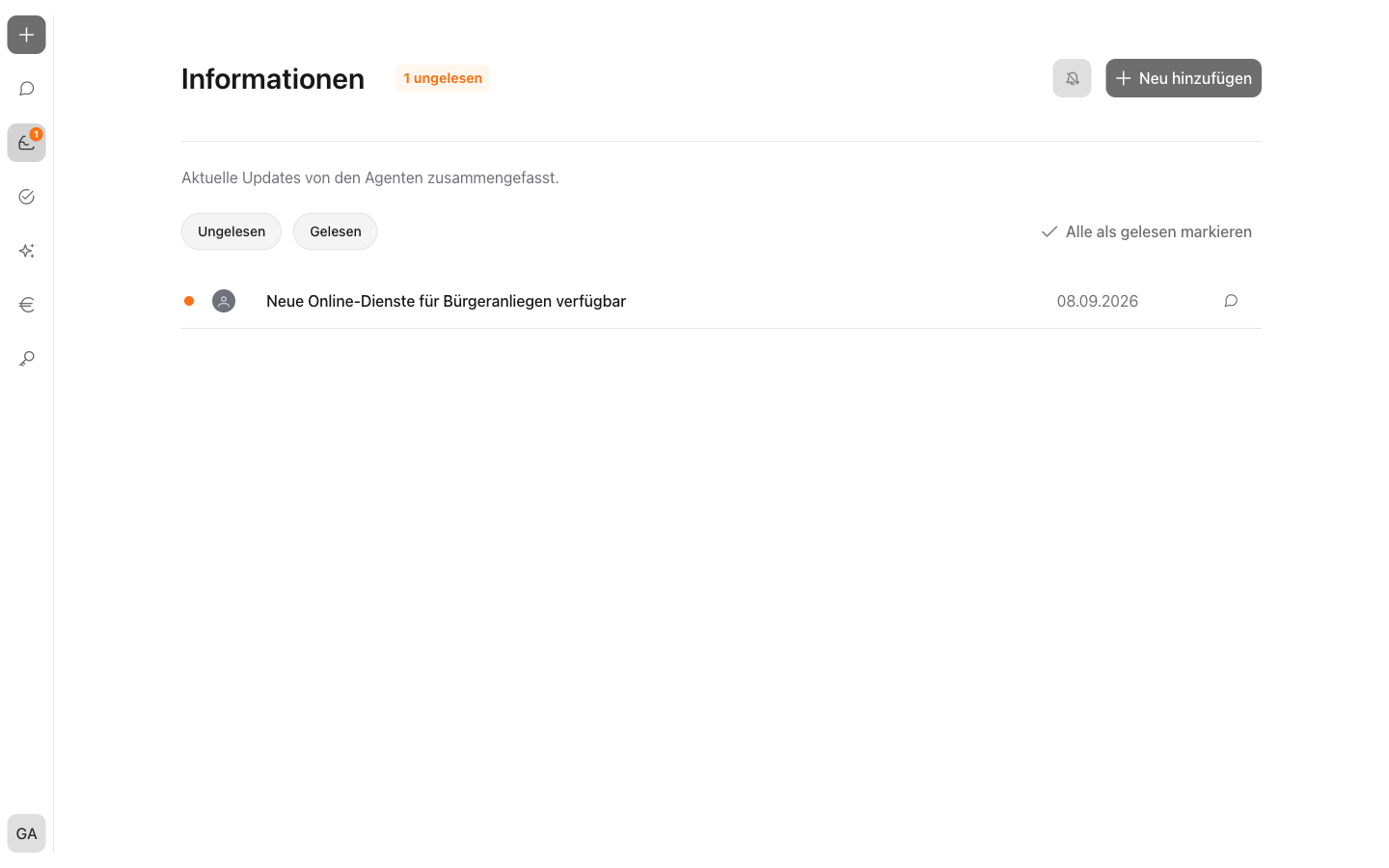
The overview opens via “Information” in the navigation. The number of unread information items is shown in the navigation.
Each row shows:
 a new, unread information item
- the source: the symbol of the agent or the creating person – the name appears in the tooltip
- title and date
 “To chat history” (see Continuing from Information in the Chat)
The list can be narrowed down via the “Unread” and “Read” filters; if both are active, all information items are shown. Via “Mark all as read”  , all open information items are marked as read at once.
Reading Information
A click on a row expands the information item and shows its full content. The content is formatted and can contain tables, lists, code blocks, and diagrams (see Diagrams in Answers). When expanding, the information item is automatically marked as read – the orange dot disappears. Clicking the row again collapses the information item.
Creating New Information
Via “Add new”  , a dialog with three entries opens:
- Title: required heading of the information item
- Description: required content; simple formatting such as lists is applied when displayed
- Share information: define the recipients. Select individual users and groups – or activate the option “Share with all users”, then all users of the company receive the information.
At least one person or group must be selected, or “Share with all users” must be activated. After creation, the information item appears in the “Information” area of all selected people.
Note
Groups are only available for selection by administrators. Anyone who does not see any groups selects individual users (see Roles and Permissions).
Note
Created information items cannot be edited or deleted later. In case of an error, a new information item with corrected content can be created.
Receiving Information from Agents
Agents can create information items on their own. Every agent has the always-active System capability for this, with user search as well as creating information items and to-dos.
- In the chat, the agent can be instructed to create an information item. The recipients are named in the chat or selected via @-mention; the agent finds the people via the user search (see Chat).
- Automations can create information items as the result of a run (see Automation and Workflows).
Information items from agents appear in the overview just like self-created ones – with the agent as the source.
Setting Up Email Notifications
For every new assigned information item, an email with the title can be sent. The email notification can be turned on and off in two places:
- via
 in the information overview
 - in the profile under “Email notifications” (see Profile)
Warning
Emails are only sent if the notification is activated. The content of the information item stays in incoreon – the email only contains the title and a note.
Continuing from Information in the Chat
Via “To chat history”, the chat jumps directly to the associated conversation. If the information item originates from a chat or an automation, the button opens that conversation. Otherwise, a new chat is started with the agent from which the information item originates.
Information FAQs
Do I receive an email about my own information item?
No. No notification email is sent to the creating person.