

Automation and Workflows
Automated workflows make it possible to have business processes executed by agents automatically: A trigger starts the agent, and the agent handles the stored tasks – entirely without manual intervention. In doing so, the agent takes on the role of the workflow orchestrator: It controls the process, distributes to-dos and information items to the responsible persons, and merges the results again. This chapter describes how automations are set up and managed.
License
Automations are part of the agent configuration and require the Builder license as well as global administrator or group admin rights (see Roles and Permissions).
What Is Automation Suited For?
- Evaluating incoming application e-mails and recording unclear cases as a to-do
- Summarizing the weekly report every Monday morning and distributing it as information
- Checking incoming invoices and creating an important to-do for irregularities
What Is Automation?
An automation connects a trigger with tasks. Every time the trigger is activated, the agent executes the assigned tasks automatically – without anyone having to click anything. This way, recurring tasks are handled efficiently.
Creating a New Automation
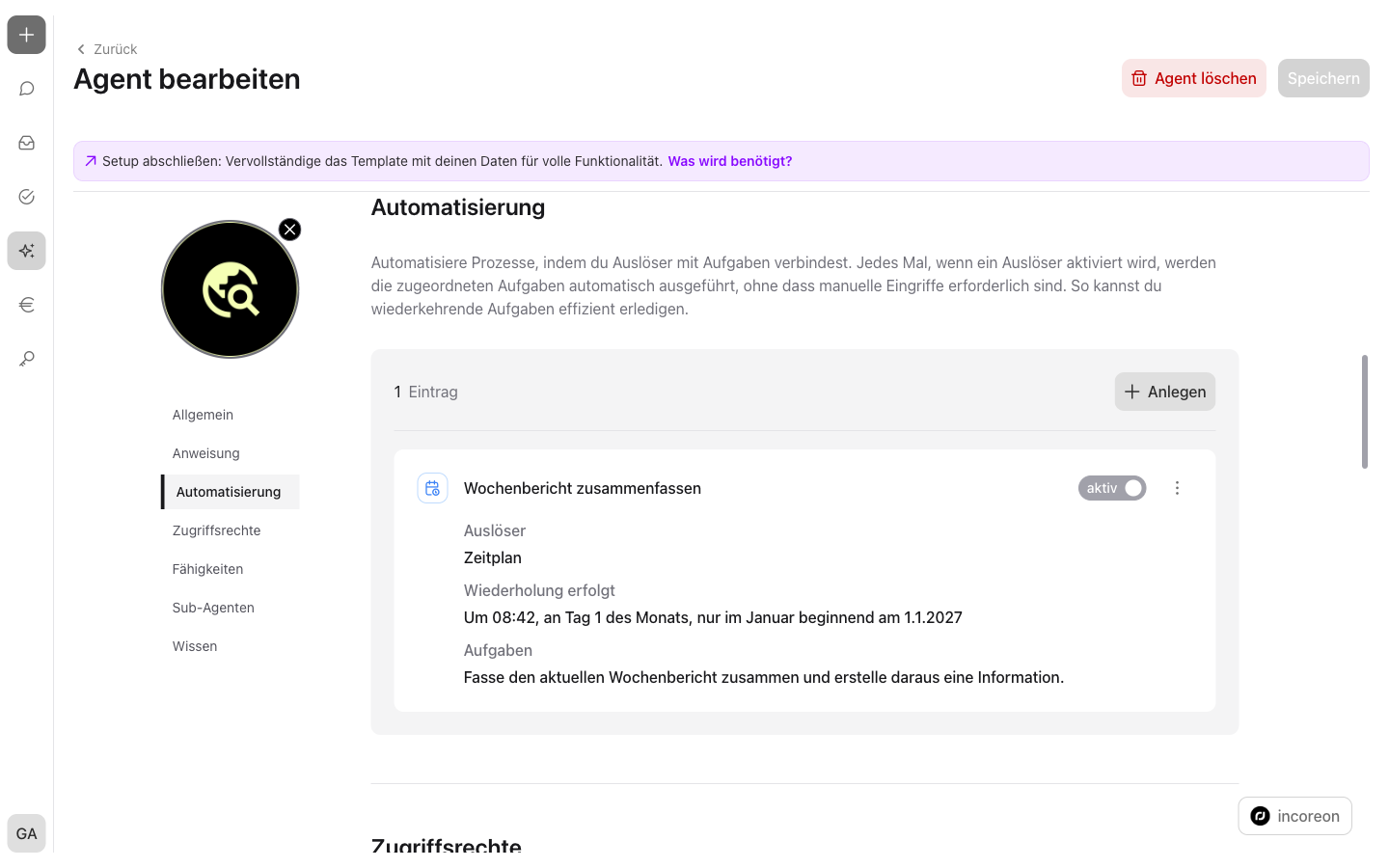
In the “Automation” area of the agent configuration, “New Automation” opens the creation form. In it, the following are defined one after another: the automation's name, the trigger, and at least one task. Via “Save”, the automation is saved and is active afterward.
Trigger via Incoming Email
The “Inbox” trigger starts the automation on every incoming e-mail of a mailbox. Under “Received at”, the mailbox is stored – depending on the selected email provider, in one of two ways:
- Microsoft mail account – the sign-in takes place via the Microsoft account in the standardized OAuth 2.0 sign-in procedure. The e-mail address is recognized automatically after sign-in. Prerequisite: A global administrator has stored the Microsoft mail tenant in the settings (see Settings – Company-Wide Configuration).
- Email provider with IMAP – e-mail address and password of the mailbox are stored directly. The available providers are defined by a global administrator in the settings (see Settings – Company-Wide Configuration).
Before saving, “Check connection” checks the access to the mailbox. The check is required – without a passed check, the automation cannot be saved.
Trigger via Schedule
The “Schedule” trigger starts the automation at set times:
- Start date and start time – when the automation runs for the first time.
- End date – when the automation runs for the last time. Without an end date, it continues indefinitely.
- Repetition – how often the automation runs. The repetition can be defined in two ways: as a textual description, e.g. “Every hour” or “Every Monday at 6 pm”, which is adopted via “Apply period”. Alternatively, the selection aid supports the repetitions “Daily”, “Weekly”, “Monthly”, and “Yearly”, including the day of the week.
incoreon shows the finished repetition as readable text under “Repetition occurs”. Repetitions may be executed at most once per hour – more frequent entries are rejected by incoreon.
Defining Tasks for Automation
Tasks define what the agent does when the automation starts. Under “What should the agent do?”, every task is described – e.g. “Check the incoming e-mail and create a to-do for the HR department for an application”. What the agent creates from it, it decides on its own at runtime: a to-do, an information item, or both (see To-Dos and Information). Every automation requires at least one task.
For whom the agent creates to-dos and information items results from the task description. Persons and groups can be named directly in it via @-mention – e.g. “Create a to-do for the approval for @Max Müller” (see Mentioning People and Groups).
How a Workflow Runs
A workflow runs from the trigger to the last result in several steps. The agent controls it as the workflow orchestrator and works through the stored tasks.
The process at a glance:
- Trigger starts the run: An incoming e-mail or the due schedule starts the automation. Every execution creates an own chat with the agent – the run's automation chat.
- The agent creates results: The agent reads the task descriptions and the trigger's data – e.g. the e-mail's content. In doing so, it decides on its own which to-dos and information items it creates and who receives them.
- Responsible persons work through the to-dos: A note is a simple hint. A process to-do is worked on in its own conversation, a decision to-do requires choosing between two options (see Understanding To-Do Types).
- Results flow back: When a process to-do is completed, its chat history goes back to the agent; with a decision to-do, the chosen option flows back. The agent evaluates the result and continues the workflow.
- The workflow ends when everything is done: From the results, the agent derives new to-dos and information items as needed – e.g. a follow-up task for another person. If no further steps are needed, the workflow is complete.
Viewing the Orchestrator Chat
A workflow's chat records how the agent controls the process: which to-dos and information items it created and how it reacted to results flowing back. In the chat history, these chats are marked as “orchestrator chat” (see Recognizing Chat Types).
Anyone who receives a to-do from a workflow can open the triggering chat directly: In the to-do overview,  “To orchestrator chat” jumps to the workflow's conversation (see Continuing in the Chat).
Managing Automations
The overview in the “Automation” area lists all entries with name, trigger, and status:
- Active/inactive – via the toggle, an automation is paused or resumed. Inactive automations do not run.
- Edit – opens the automation for adjustment.
- Delete – removes the automation after confirmation.
Every execution creates a chat with the agent. These automation chats can be opened directly at the entry and show what the agent did on the last run (see How a Workflow Runs). In the chat history, they are marked as “automation chat”.
Keeping an Eye on Automation Costs
Every run of an automation consumes tokens and can cause costs – just like a conversation in the chat. This also applies to runs that are started again from results flowing back (see How a Workflow Runs). Costs and consumption per agent can be viewed in the cost control (see Cost Control).
When the agent reaches its monthly cost limit, automatic runs no longer take place (see Behavior When the Cost Limit Is Reached).
FAQs about Automation
Why can I not connect my Microsoft mail account?
The Microsoft mail tenant has not been stored yet. A global administrator has to fill in “Tenant ID”, “Client ID”, and “Client Secret” in the settings (see Settings – Company-Wide Configuration).
Does an automation work with capabilities in the personal account?
No. Automations do not support personal account connections. For the integrated capabilities, a shared account is used instead (see Agent Components in Detail).
What happens when the agent reaches the cost limit?
Automatic runs no longer take place. Remedy: increase the cost limit or wait for the month to change (see Behavior When the Cost Limit Is Reached).